Level design is when devs and designers create playable spaces in games, focusing on mapping out where the player moves, how they’ll engage with enemies and the triggers needed for progression. Level design needs to balance visual appeal with gameplay logic, so modeling tools like Blender are used to design the objects for the level.
Blender is free, open-source graphics software that comes with tools for modeling, texturing, animation and rendering. Devs block out levels in Blender by throwing in simple shapes to figure out where everything goes and how it all fits together. They’re able to then model the actual objects with finer details where necessary and move them into a game engine for the logic.

I go into how to use Blender for level design, along with setting up grid snapping and scaling according to recommended measurements. There’s information on blocking out levels too, in terms of base geometry and planar faces. Learn how to export assets in modular pieces (after marking the functional ones) before importing them into engines too.
1. Set up the Blender workspace for level design
Set up the Blender workspace for level design by customizing the workspace to look like a game editor. Blender is designed for multiple workflows like modeling, animation and sculpting, so having the entire UI laid out makes it overwhelming to navigate. Adjusting it to look like a game editor makes sure all the tools are at easy reach, similar to clearing a desk.
Blender has different workspaces in the tabs at the top, from which you need to select Layout Mode. The Layout workspace gives a clear view of the 3D Viewport, Outliner and Properties Panel. Organize the panels to create a simple, optimized workflow. Keep the 3D Viewport large since it’s where you’ll design the level; having it small makes it hard to add details and figure out scaling. To track objects like walls and lights, keep the Outliner on the side. Put the Properties Panel below or on the right for materials, modifiers and physics.

Turn on the grid floor and enable snapping to make sure your level pieces line up correctly. This means pieces like doors line up correctly against walls, similar to snapping tiles in Super Mario maker. It’s recommended to use Collections to organize all the objects, like using folders for different object types, since it’ll help keep complex levels manageable.
Enable Blender’s built-in add-ons to help with keeping measurements consistent, which is important for level design. Node Wrangler (makes working with materials easier) and Measurelt (measures distances directly in the viewport) are two useful add-ons I recommend turning on.
2. Enable grid snapping
Enable grid snapping so objects line up by snapping together neatly, like working with Legos. Snapping is used with modular assets like walls, floors and stairs to eliminate gaps and overlapping. To enable snapping, first click the magnet icon on the 3D Viewport header, then choose the snap type and tweak the settings as needed.

Choose the snap type by selecting Increment from the dropdown next to the magnet, which makes objects align to the grid floor. Snapping objects to vertices, edges or faces are other options which are useful for aligning props to the existing geometry. Adjust the snapping settings to increase efficiency and accuracy. Toggling the absolute grid snap keeps the objects locked to the grid. Holding Shift while moving disables snapping temporarily, allowing for additional tweaks.
3. Set grid scale
Set grid scale to define how big each square on the floor grid is and make sure floors, walls and props match up with the player’s size. Setting the grid scale lets you use the snap to grid function to align objects cleanly with the squares. To set grid scale, open Scene Properties (the cone icon on the right hand side), find the Units section and set the length to meters. Setting the length to meters makes Blender’s grid match real-world measurements, which is important when you export the level to a game engine.

You’re able to adjust the grid scale to match your own scales by going to the Viewport Overlays menu. 1 meter per grid square is the standard measurement since it matches up to one step a player takes. 0.5 meters allows for finer control, and 0.25 meters lets you make very minute adjustments, which is useful for small spaces or puzzles. Setting these up helps keep the layout consistent throughout large, complex levels. Consistency is important as it increases both playability and immersion, according Adams’s book, Fundamentals of Game Design (2014).
4. Define level design metrics and standards
Define level design metrics and standards so it’s clear how big a door or corridor needs to be to accommodate characters and enemies. Metrics are numbers that define how big, wide, tall or spaced apart things need to be in the game world. Standards are the rules and guidelines that keep these numbers the same throughout the level. Together they improve playability and make it easier to collaborate across large level design teams since everyone measures units the same way.
Core metrics that you need to set include the player scale, movement metrics, interaction distances, camera behavior, and field of view. The player scale defines the average player height, like 1.8 meters for a human, and sets the baseline for doors, corridors and props. Movement metrics include jumps, height, crouching, and step height settings that make stairs, heightened platforms and obstacles feel natural. Blocks in Super Mario Bros., for example, are placed at heights matching Mario’s jump metrics. Defining both ensures players are able to move through spaces fluidly with minimal collision.

The standards you need to define include grid alignment, unit systems, modular assets and accessibility. Use snap to grid for grid alignment to make sure all the walls, floors, and props align perfectly and make sure to use meters in Blender to match real-world scales. Repeating assets like doors and walls in a level need to look the same so build with replicable pieces so it’s easier to make prefabs. Lastly, make sure all the paths and stairs are wide enough so players don’t collide with the walls on each side or get stuck in place.
Set how far enemies are able to see, attack, and chase via the interaction distances which define corridor lengths, cover spaces and arena sizes. Players need enough space to dodge and enemies can’t be chasing them throughout the entire game, especially in open worlds. Define the camera and field of view so spaces also feel right depending on the camera view, whether it’s first-person or third-person. Resident Evil 4 uses narrow corridors for that over-the-shoulder field of view that brings in tension and provides a clear view.

5. Model base geometry
Model base geometry to test out whether the level is playable and see how it looks overall. Base geometry refers to simple shapes that represent walls and floors, like cubes and cylinders, so modeling it isn’t about adding detail. It’s about blocking out a playable space to see how the scale, flow and layout work together. Modeling simple base geometry makes it easy to replace the shapes with detailed assets after finalizing as well.
To model base geometry, start with the primitives, which are Blender’s built-in shapes. Go to Add, click on Mesh and choose between Cube (for walls and stairs) or Plane (floors). You’re able to block out the level next by arranging the primitives to form rooms, corridors and platforms. Keep everything snapped to the grid so it lines up correctly.

Bring in a reference object, like a cube that’s 2 meters tall, to represent the player and check whether it feels natural against your doors, and corridors. Test the playability of your level once everything is laid out by walking through it using Blender’s camera tool or exporting the test builds. The geometry throughout this process has to be simple, so avoid adding curves, or any fine details in case they need to be swapped out. Focus on making sure everything’s playable first, and polish it up later.
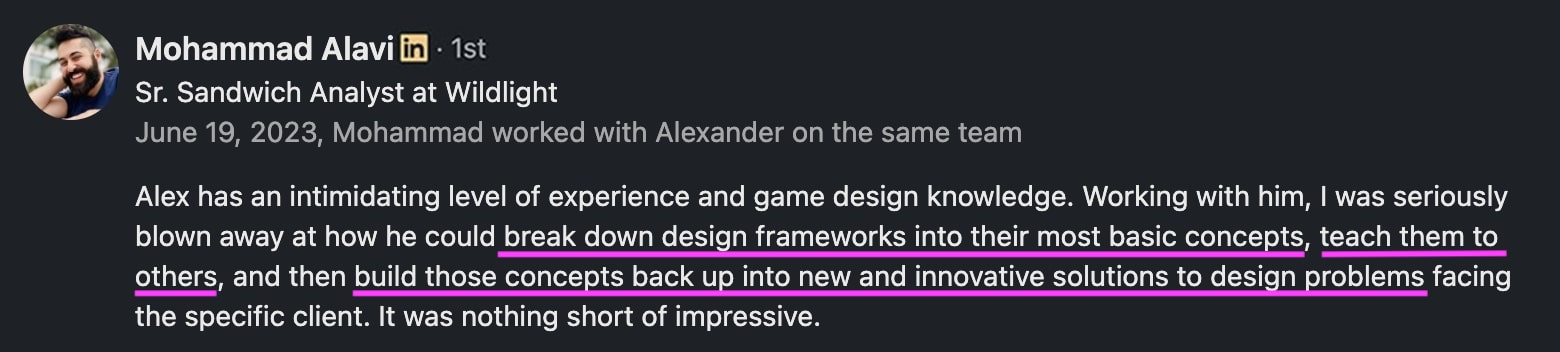
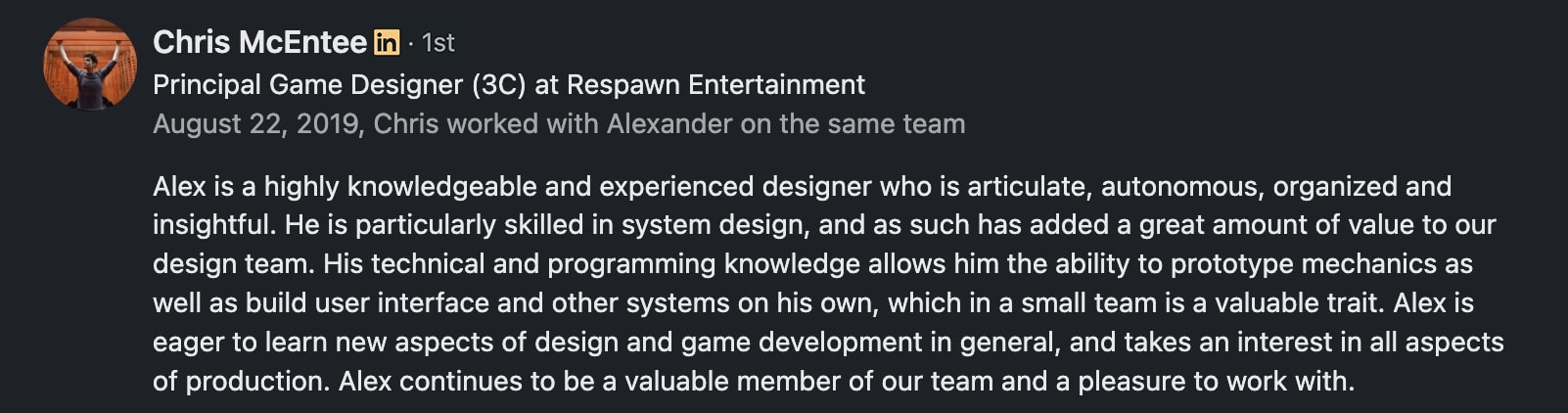
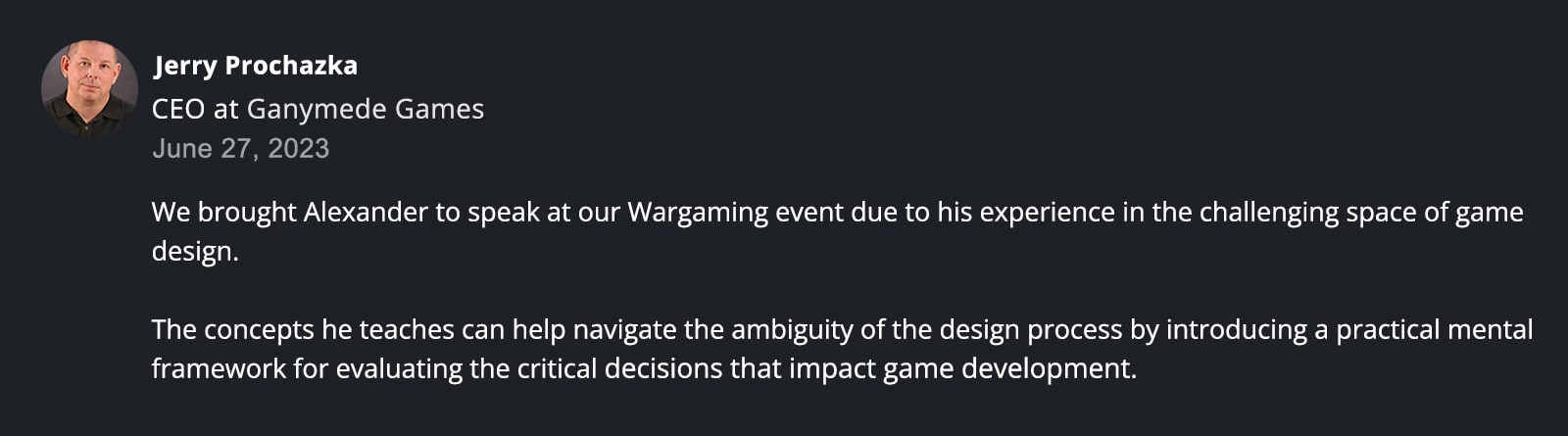
If you want to learn more about modeling a level’s geometry and where level design intersects with other aspects of game design, the best way is to try making one yourself. Our Level Design Blockout bootcamp was built around the idea that nothing beats hands-on experience, so you’ll get tons of it across all 16 iterations and 6 live playtests. Myself and Mike Madden (a Senior Level Designer with 20+ years of experience) will guide you through the whole process from ideation to actually blocking out your level to presenting your work in a professional, eye-catching portfolio piece.

6. Use planar faces
Use planar faces since they’re lighter for game engines to process and add collision, lighting, and optimize for performance. Planar faces are when walls and floors are made of flat, clean polygons instead of bumpy surfaces. Flat faces make sure shadows and lightmaps appear correctly, and the geometry makes it easier to make them reusable. It’s ideal to use planar faces for modular assets like floors, walls and ramps since they’ll be connecting with other flat surfaces and it ensures they don’t overlap.

Using planar faces is similar to modeling base geometry since you start off with cubes and planes (they’re naturally flat and clean). You need to check for non-planar faces next by going into Edit Mode, selecting a face and checking whether the shading is warped. To fix warped shading, use the Merge by Distance or Align to Axis tools. The Merge by Distance tool takes out any duplicated or overlapping vertices while the Align to Axis tool forces vertices onto a flat axis. Keep all the geometry simple; don’t add subdivisions or diagonal cuts unless necessary.
7. Create openings for doors and windows
Create openings for doors and windows as they set the flow for how players move through spaces and bring the base geometry to a playable level. Doors and windows set scale standards as well since doors need to fit the player for high playability. Make sure to set standard dimensions before starting, like doors being 2 meters tall and 1 meter wide, and check that the wall around the openings is flat and clean. This ensures consistency and playability across the level.

To create the openings start with simple cubes or planes to represent the walls and keep everything snapped to grid. Use loop cuts (ctrl + r) to add edge loops that’ll define where the openings are going to be. You then need to select and delete the face inside the loop to install the opening. Another way to create openings is via boolean modifiers, where you add a cube where the openings need to be and then apply a Difference Boolean modifier to cut it from the wall. Loop cuts are ideal for to-the-point openings that align with the grid, like doors. Boolean modifiers are useful for complex or irregular openings like a cave system that needs to be trimmed in places to look natural.
8. Mark functional objects as entities
Mark functional objects as entities by tagging and organizing them so the game engine knows they aren’t static objects. All assets in Blender start off as meshes like cubes and planes, but in level design objects are functioning entities. These include doors that open, breakable windows and triggers to activate events, like enemy spawn points. Tag assets so that the engine knows they’ll need gameplay logic, and store them accordingly. This lets everyone know which objects are interactive elements, so it’s especially useful in large teams.
Mark functional objects by renaming them, as game engines rely on names or tags to assign a function. Tag them with names like door_main or enemy_spawn that clearly indicate the purpose of the object. Assign custom properties by going to the Object Properties tab and adding custom attributes like doors for the entity type. These properties are read by scripts in game engines to assign them special behavior. Place all the functional objects into a separate collection to make exporting them easier, and to keep them separate from static objects.

Use Empty objects for both player and enemy spawn points, as well as areas that activate events. An Empty is a special type of object in Blender that doesn’t have geometry, so it doesn’t render, or have faces, edges and vertices. It’s an invisible marker in your level, but you’re able to see it in the viewport as a simple shape. For all the objects, including Empty objects, the scales need to be consistent. Doors have to match player height and spawn points need to line up with the metrics.
9. Export the level objects as modular units (assets)
Export the level objects as modular units (assets) so that each unit becomes a reusable asset and helps build levels quickly. Level designers break their levels into modular units, like building blocks, with separate pieces for doors, stairs and walls instead of exporting the whole level as one large mesh. Exporting them like this means designers are able to put them together in different ways while maintaining a consistent design.
Export the level objects by first organizing them into collections based on their type, like separate walls, floors and stairs. Apply transforms (ctrl+A to apply all transforms) next to reset their scale, rotation and location so that your assets import into your engine without getting messed up. You also need to move the object’s origin point to a correct spot, like grid corners, since the origin point is what lines up when you snap assets to the grid or to other objects like the floor or wall.

Origin points are a small orange dot on the object that are visible in the viewport, and they don’t move unless you manually change them. Think of origin points like how when you press a piece of paper at a certain location, you’re able to move it around that point. Origin points are the same; they make sure objects rotate or shrink and expand around them. You need to set this point where you think it works most efficiently for the engine to know where to pivot the object from.
Make sure your module scale is the same for all your assets before you export them so you don’t end up with a staircase that’s too big for your wall and for consistency. Lastly, make sure you’re using the recommended export formats for your game engine. GLTF is recommended for modular assets since it’s lightweight and works across game engines. It’s also got built-in support from Godot.
10. Import the GLTF file into the game engine
Import the GLTF file into the game engine by first going to File, then Export and lastly, clicking on glTF 2.0. GLTF is a useful file format since it works across engines like Unity, Unreal, and Godot, as well as web-based engines according to Statham et al.’s 2021 paper. Engines come with their own specific importers or plugins for GLTF, so the workflow changes depending on what you’re using. Godot comes with built-in support for GLTF, so all you need to do is drag the file into the FileSystem panel but external plugins are needed for Unity and Unreal.

For Unity, install the GLTF Unity or Khronos GLTF importer package and then drag the file into the Asset folder where Unity converts it into a prefab. Unreal doesn’t support GLTF either, so you need to use the GLTF importer plugin from Epic Marketplace. Go to Edit and enable the plugin, then go to File and use Import into Level to select your file. Unreal then converts the file into a Static Mesh asset for you to use.
Is Blender good for level design?
Yes, Blender is good for level design during the 3D asset creation process and when prototyping level layouts. Unity and Godot are better for building and running full game levels since they come with tools for game logic and physics that let designers add interactive elements. In level design, it’s considered efficient to use Blender to model the objects and then use game engines to add the game logic.

Blender comes with a full toolset for modeling, animation and texturing so it’s ideal to block out levels and export assets in modular pieces. Blender supports grid snapping and scaling as well so it’s easy to design the modular kits, and you’re able to preview the lighting and camera views. It’s not a game engine though, so it can’t handle logic, physics or AI automated systems. You’re able to prototype a Blender game via the viewport but you won’t be able to run it like Unity or Godot.
Unity is a full game engine so it comes with physics, C# scripting and asset management tools which all come in handy for large, complex levels. Godot is similar to Unity, but is comparatively lightweight and open-source. It also comes with built-in GLTF support so you don’t need to use external plugins like with Unity. Godot and Unity both also have scene systems that make it easy to organize modular assets into reusable pieces. Unity has limited modeling tools though and Godot’s rendering tools and plugins aren’t as advanced as Unity. It’s better to rely on Blender for asset creation and use Unity or Godot to assemble the modular units, and add game logic in the end.
If you’re still deciding between level design and one of the many other specializations within game design, one easy way to determine your preferences is by sampling the work for yourself. Our bootcamps in Game Mechanics, Game Writing and various other subdisciplines are all led by veteran designers who definitely weren’t 100% sure where they were going to end up (but are happy to share the wisdom they gained along the way). Like the Level Design Blockout bootcamp, each is a multi-week intensive course offering more than enough practical experience to see whether you want to go further down that particular rabbit hole.